
Guide
Linear scheduling from your Primavera P6 programme
Keep scheduling in P6. Give each activity a chainage and draw the linear schedule from the same data, every update.
Linear scheduling
Where the work is, as well as when
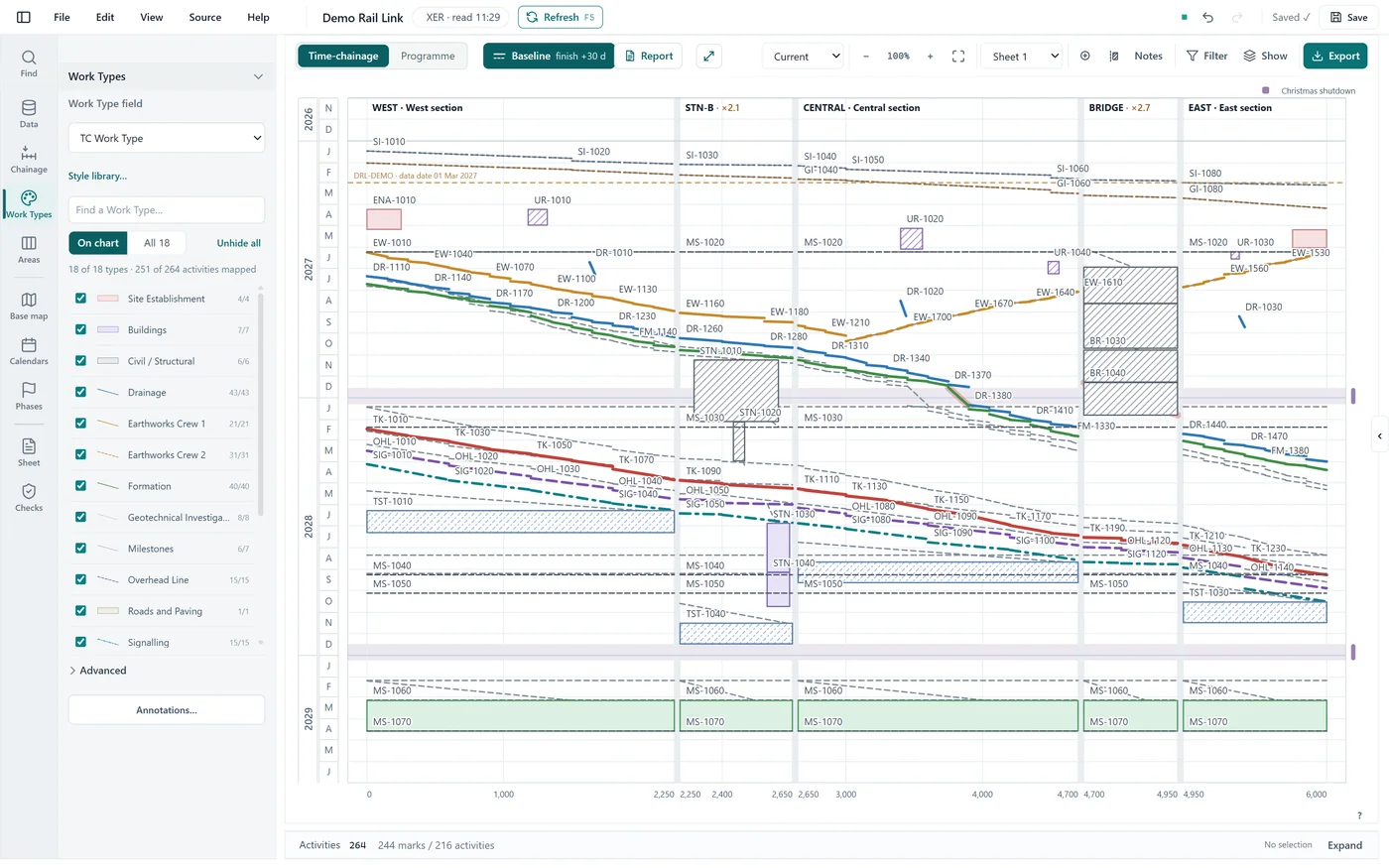
Linear scheduling, also called the linear scheduling method or location-based scheduling, plans repetitive work by where it happens along a route as well as when. It belongs to jobs where crews move in a line: railways, highways, pipelines, tunnels and transmission lines. The output is a time location chart with chainage across the page and time running down, where each crew is a sloping line and the slope is its rate of progress.
P6 has no axis for location
P6 is a critical path scheduler. It handles logic, calendars, float and resources, and most clients ask for it in the contract. What it does not have is a chainage axis. The Gantt view sorts activities by WBS or code, so a pipe crew's activities along several kilometres become a column of bars, and the first question a site team asks (where will we be in March?) has no picture.
Many teams fill the gap by redrawing the programme in a CAD package or a spreadsheet each month. That holds until the programme changes, and on a linear job it changes every month. The drawing falls behind, and before long nobody is sure which version is right.
Linear scheduling without leaving P6
The other way is to keep P6 as the schedule and draw the linear view straight from its data. P6 still calculates the dates and the float. The chart adds the location. Two or three pieces of P6 data do the job.
- The chainage, as a text UDF with a location expression such as
CH1200-CH1800, or a pair of number UDFs for the start and finish chainage. A range keeps its direction, so a crew working back towards CH 0 is writtenCH1800-CH1200. Separate points and extra stretches with semicolons:CH30; CH625; CH2675. - The work type, from an activity code or field saying which crew or kind of work each activity belongs to, such as Earthworks Crew 1, Drainage, Track or Systems Testing. Each work type becomes one line or block style on the chart.
- The area, if the job has separable portions: another activity code or UDF says which portion an activity belongs to. Each portion is drawn on its own chainage, side by side on one time scale.
Activities that have no place on the route, such as design, procurement and approvals, get no chainage. They stay in the programme and off the drawing.
How TCC draws it
Time Chainage Chart (TCC) is a Windows program that reads a P6 programme and draws this chart. Open an XER export or the local P6 Professional database, choose the fields above, read the validation report and apply. Each activity is drawn at its chainage, as a straight line or a block from its start date to its finish date. You can show Current, Target, Early or Actual dates.
P6 stays the scheduling tool. TCC never reschedules and never writes back to P6: the dates on the chart are the dates P6 stored. For checking, the same programme opens as a P6-style grid and Gantt. Select an activity there to see its predecessors and successors, with the driving relationship marked.
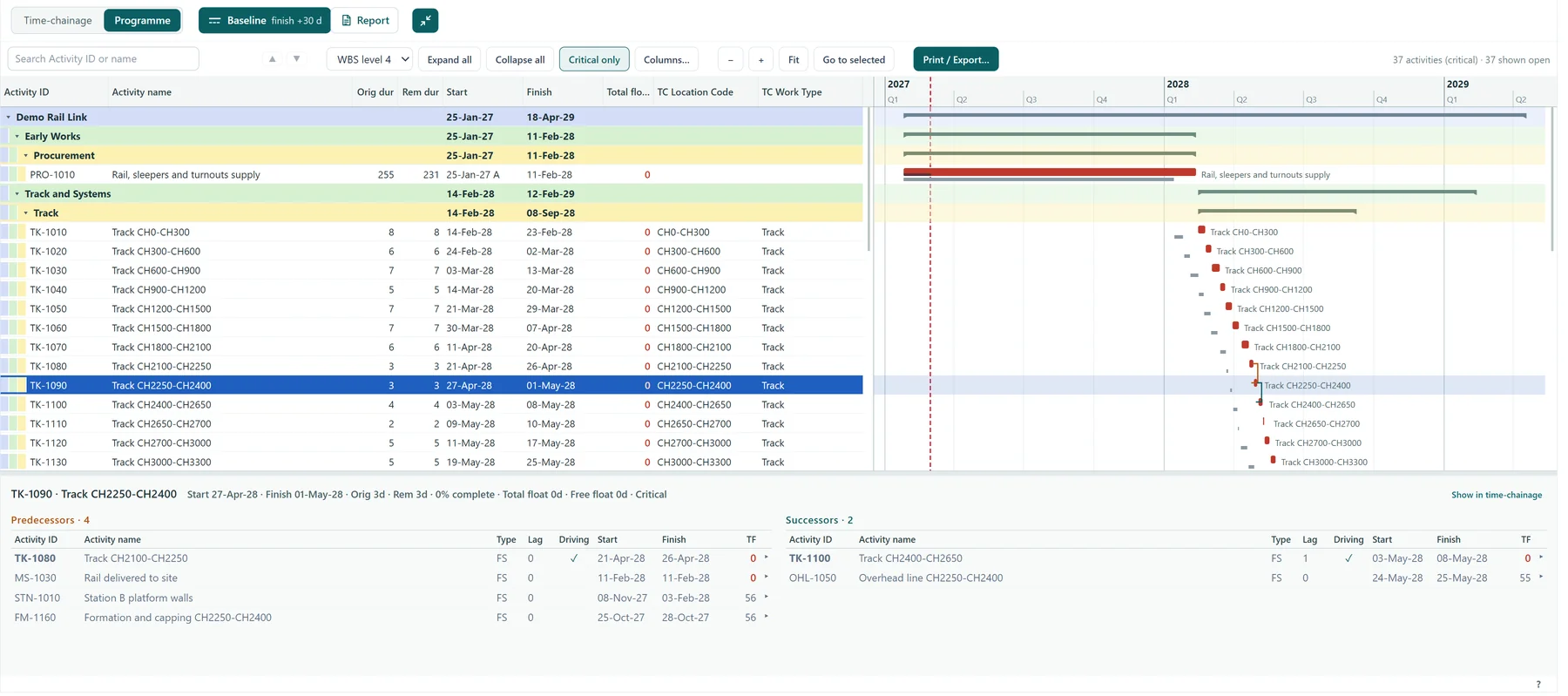
When the programme is updated, Refresh reads the XER or the database again and keeps the mapping, styles and notes, so next month's chart does not start from a blank page.
What you can print
A3 or A4 PDF sheets with a legend and a title block carrying the drawing number, revision and up to three logos, or PNG and SVG for reports. A long scheme splits into separate sheets for its areas on a shared time scale. The baseline can sit under the update as dashed grey lines, so slip shows as a gap. The use cases page shows each of these on the same demo project. If you are new to the chart itself, read how to read a time location chart, and for what planners check on it, see time distance charts.
Free download · Version 1.0
Free for everyone
Every feature, with no account and no activation code. Printed sheets carry a small “Made with Time Chainage Chart” line.
Installs in one click and the Store keeps it up to date.
Version 1.0 · 19 MB
If Windows shows “Windows protected your PC”, click More info › Run anyway.
- System
- Windows 10 or 11, 64-bit
- Also needs
- Edge WebView2 and .NET Framework 4.6.2 or later. Most Windows PCs have both.
- Reads
- P6 Professional database, or an XER export
- Internet
- Not needed. The installer version looks for updates once a day; you can turn that off.